
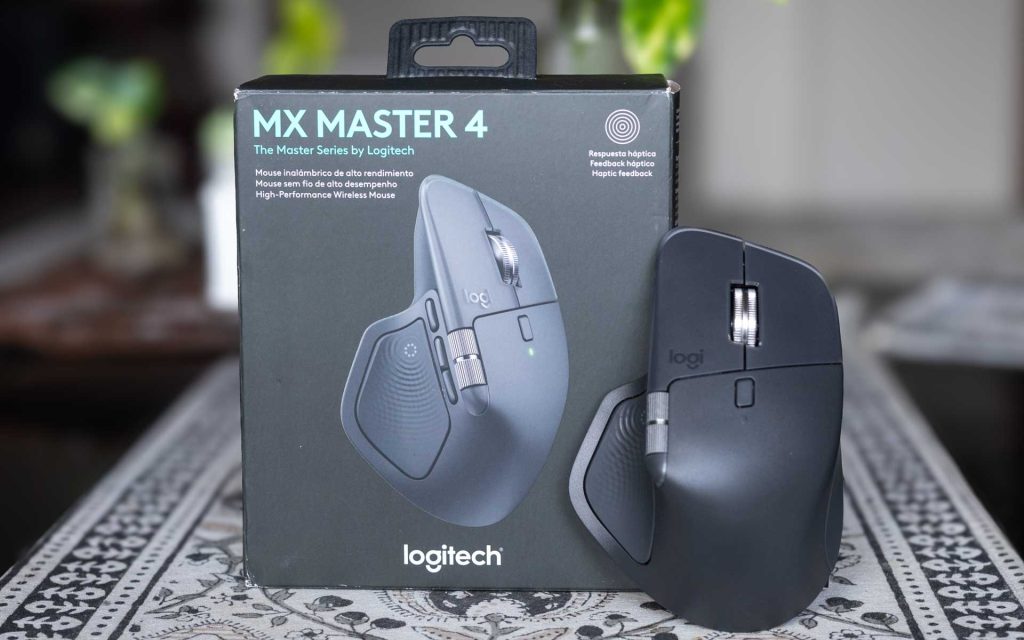
The popularity of the Logitech MX Master mouse is ubiquitous among the productivity-enthusiasts and it’s for good reason – the product is just that excellent. Anyone who uses it swears by it and they stick by it for years. The company has now introduced the MX Master 4, which makes a couple of improvements over the MX Master 3s, both in software and hardware. Do these changes make it worthy to upgrade? Or is it fine to keep using the previous generation? Read on in my review to find out.
Box Contents
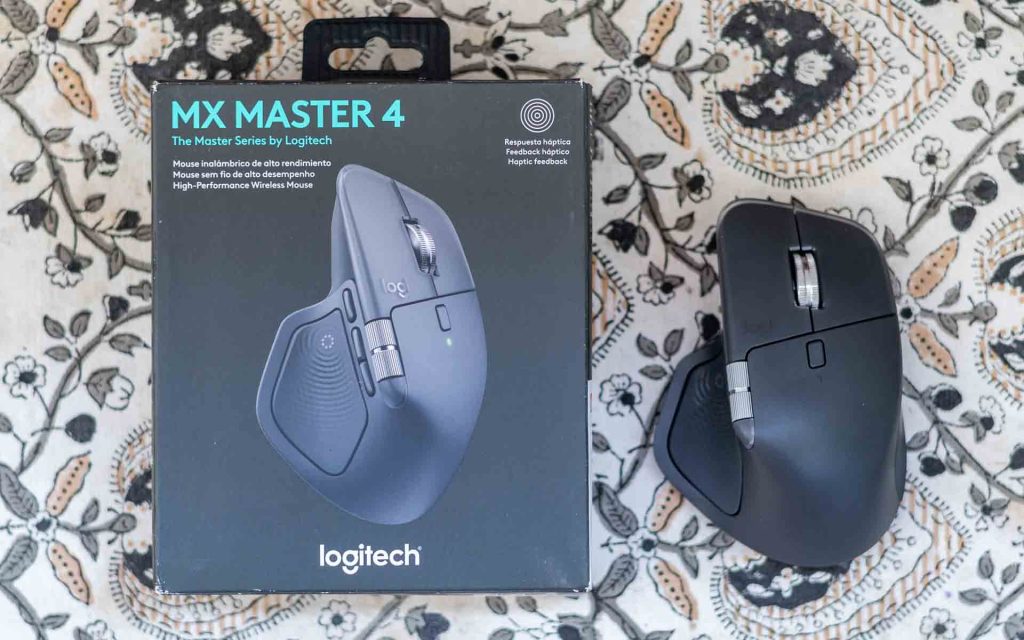
- Logitech MX Master 4 mouse
- USB-C Bolt Receiver
- Safety and Warranty Information
Design and Build Quality
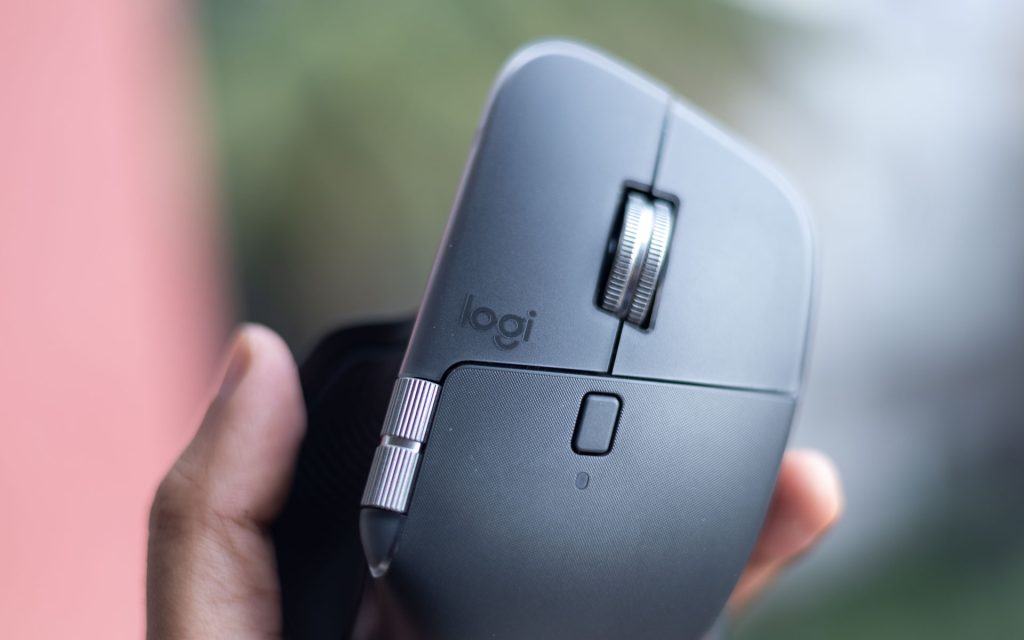
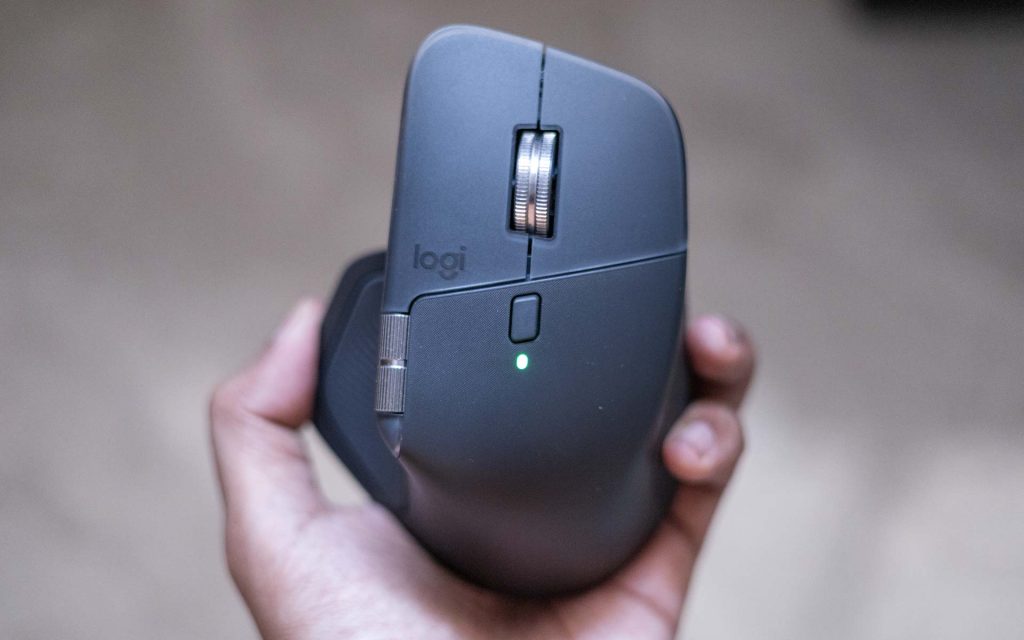
At first glance, the design of the MX Master 4 looks largely unchanged. It retains the same semi-vertical, non-ambidextrous shape that allows your right hand to rest naturally at a comfortable, ergonomic angle. I typically use gaming mice in my day-to-day work, so the MX Master 4 does feel different in hand, but in a good way. During long productivity sessions, I experienced less wrist fatigue compared to using more traditional mice over extended periods.
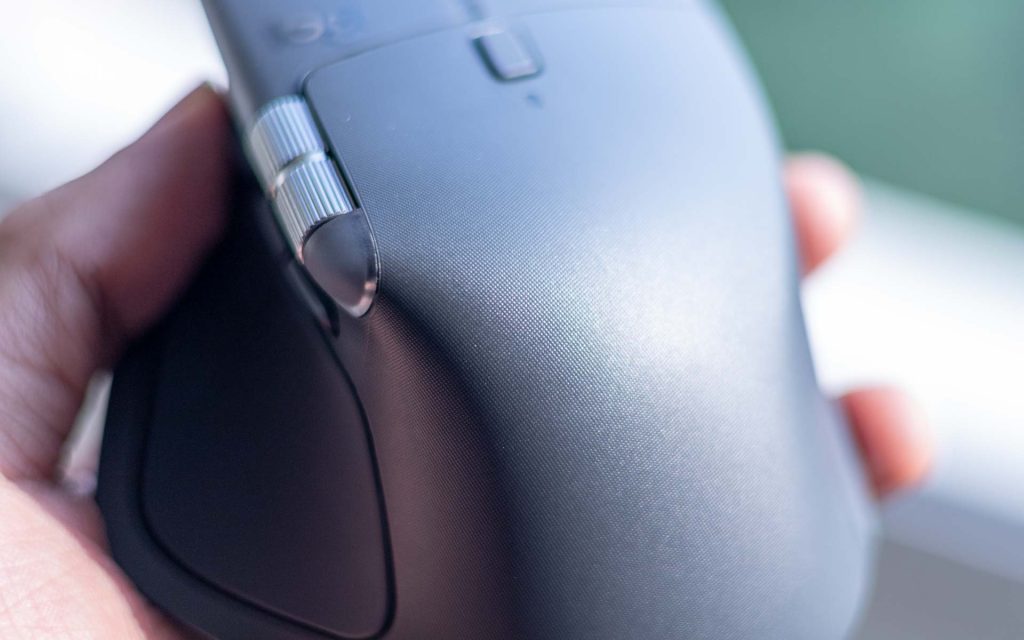
Logitech has made several subtle but welcome updates to the materials and surface finishes. The top surface now features polished microtextures that feel more comfortable against the skin. Logitech also claims improved resistance to stains and dirt, and based on nearly a month of use, this appears to hold true.

The silicone side grips feature a pattern of small bumps that improve grip, while the main left and right buttons now have a translucent plate on top. This gives the mouse a more modern look and helps it stand out from the previous generation.
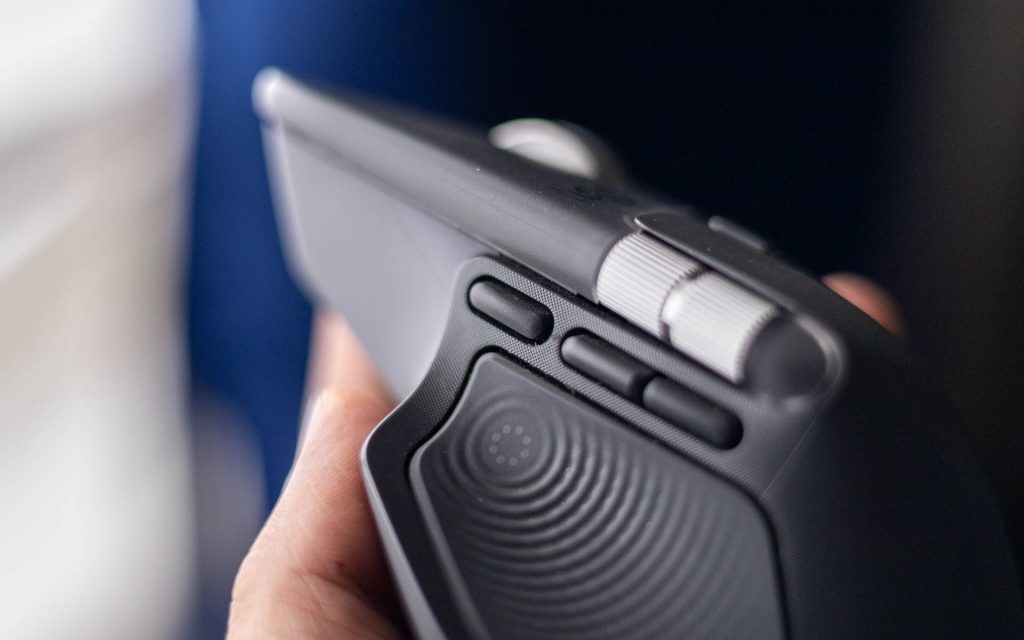
The knurling on both scroll wheels remains unchanged from the last model and continues to feel tactile and excellent to use. The Gesture button has been repositioned to the front of the Forward and Back buttons, making it easier to reach in my experience.
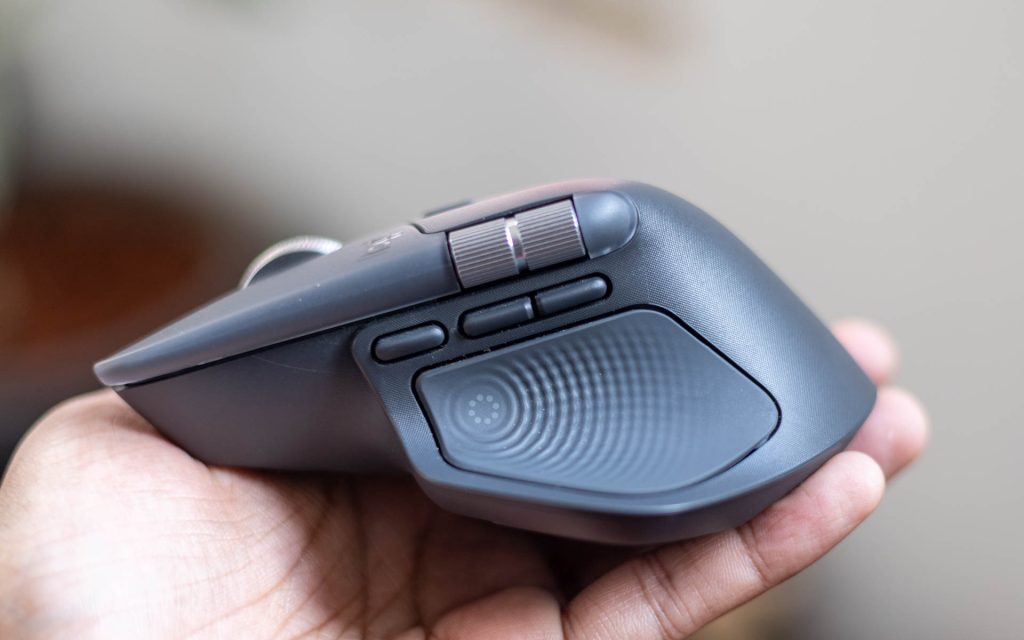
That said, Logitech hasn’t completely removed the functionality of the button beneath the thumb rest. Instead, it now features haptic feedback, powered by a small vibration motor that responds to various on-screen actions, which I’ll cover in more detail later in the review.
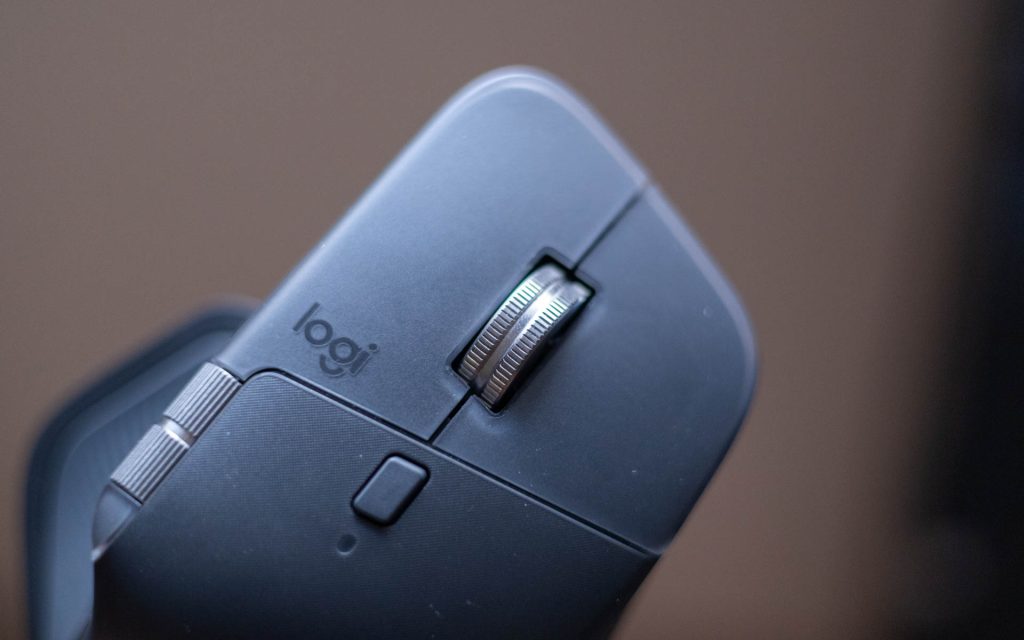
The primary left and right buttons continue to offer virtually silent clicks, and they feel extremely satisfying to press. It’s a small detail, but one that adds significantly to the premium feel of the mouse.
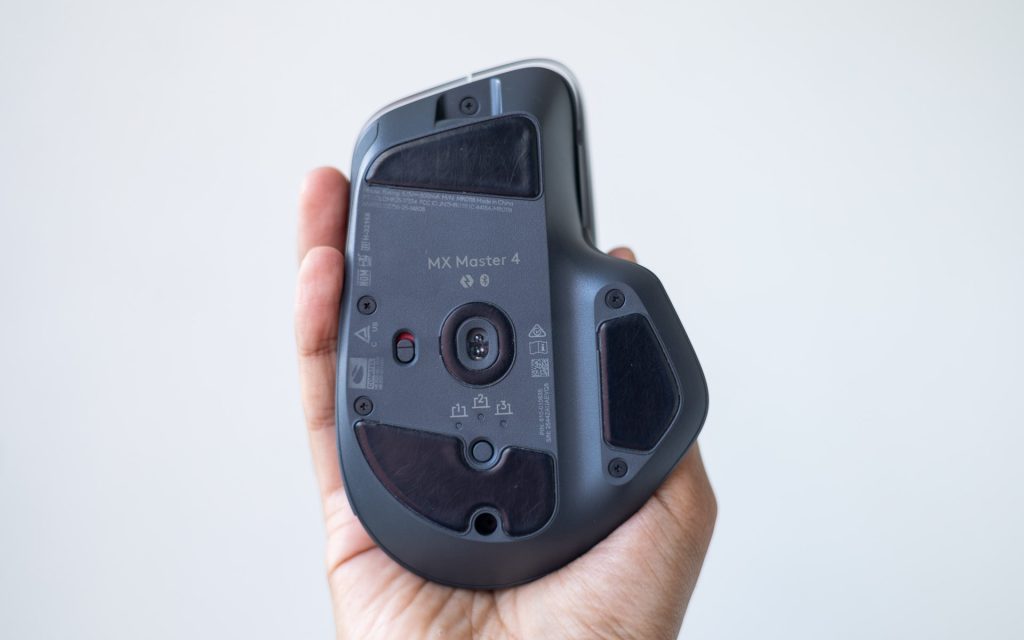
On the underside, you’ll find the device switcher button, the 8000 DPI Darkfield high-precision sensor, and the power toggle. As with the previous generation, there is still no storage slot for the USB receiver. While this does increase the chances of misplacing it, it isn’t a major issue in day-to-day use.
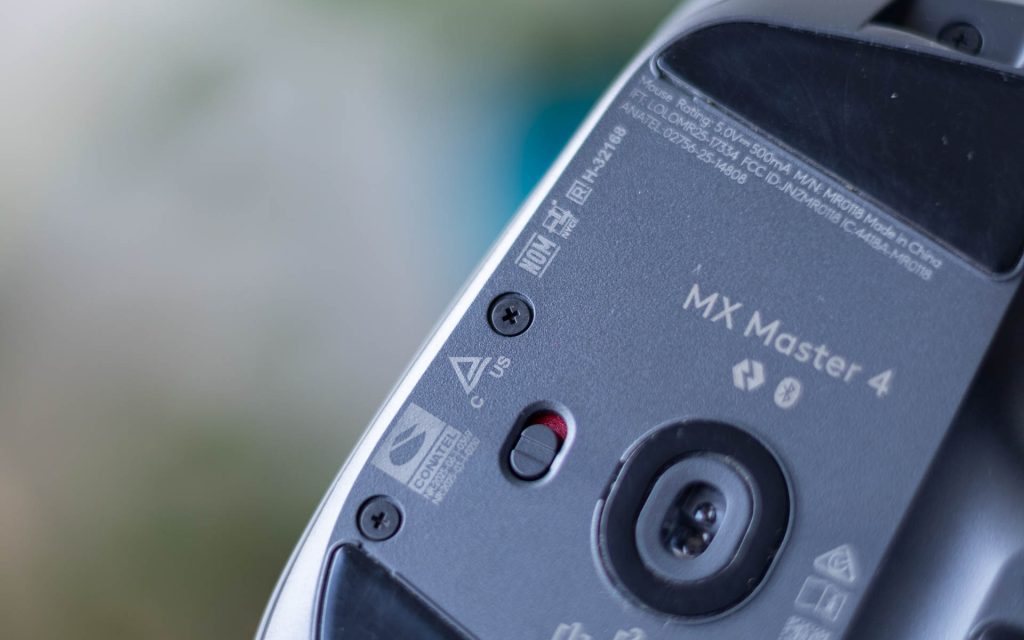
One welcome change is the use of standard screws on the bottom panel, which should make servicing and repairs easier than before. Combined with the fully recyclable packaging, it’s clear that Logitech is making a stronger push toward sustainability, and that’s something I genuinely appreciate.
Software and Features
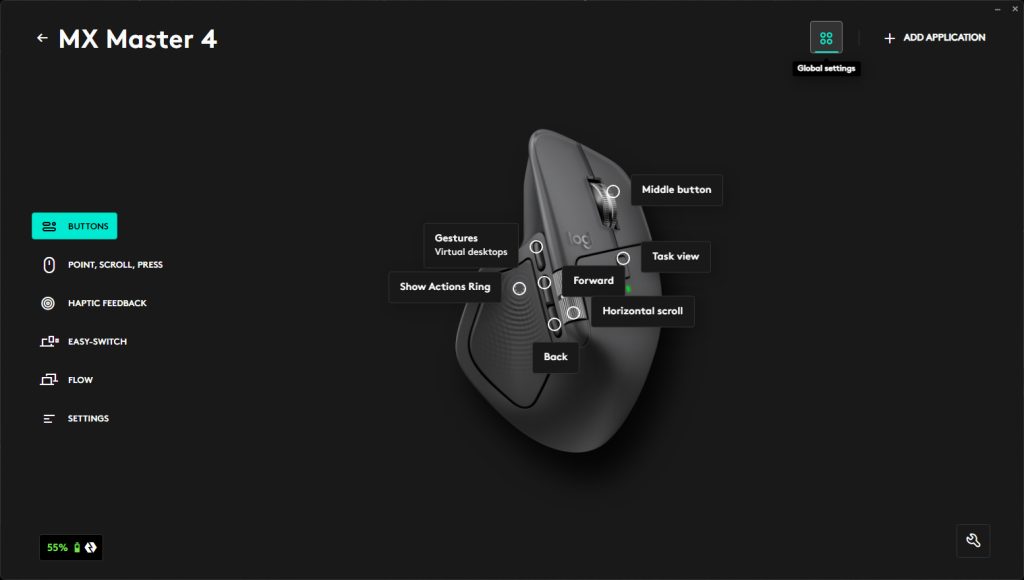
For a tech product to truly stand out, good hardware needs to be backed by equally capable software. Thankfully, Logitech delivers on this with its Logi Options+ companion app. The app allows you to configure and customize multiple Logitech peripherals from a single interface, and it features a clean layout that is easy to navigate and understand.
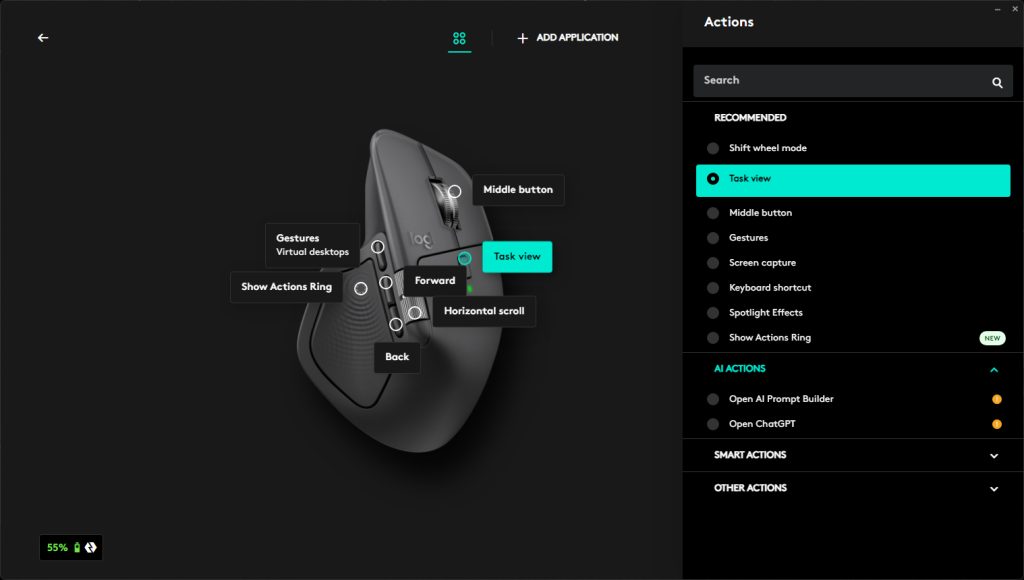
Customizability is where the MX Master 4 truly shows its strength as a professional productivity mouse. Every button can be customized both globally and on a per-application basis. These options range from simple actions such as play/pause, cut, copy, and paste, to more advanced functions like triggering macros, assigning custom keyboard shortcuts, and even accessing ChatGPT through the built-in AI Prompt Builder.
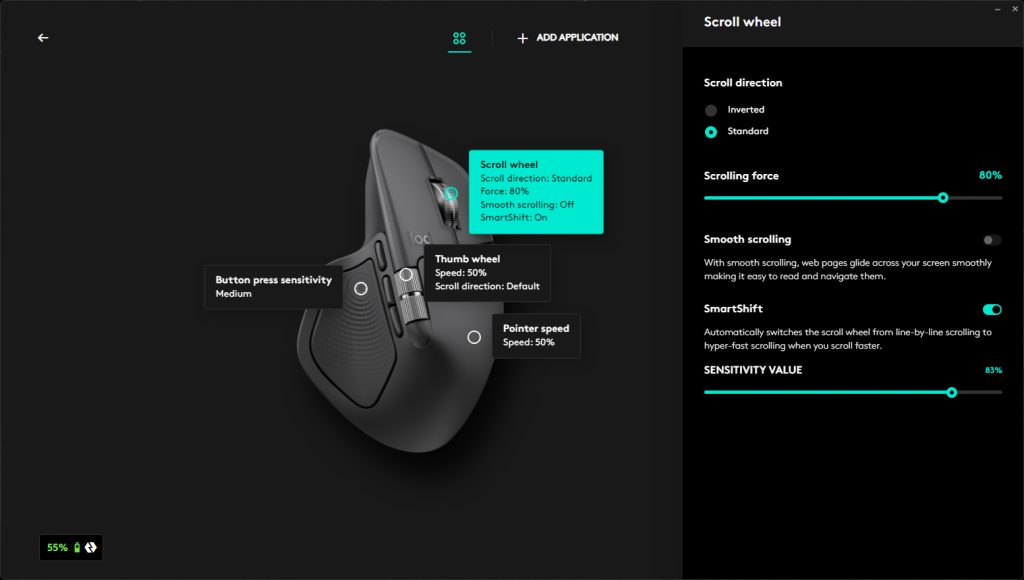
Even the scroll behaviour is highly customizable. Users can adjust the scrolling direction, fine-tune the force required to scroll, and tweak other scrolling parameters. One feature I continue to appreciate is SmartShift, which automatically switches the scroll wheel from precise, line-by-line scrolling to a free-spinning hyper-fast mode. Logitech also lets you control the threshold at which this switch occurs, adding yet another layer of personalization.
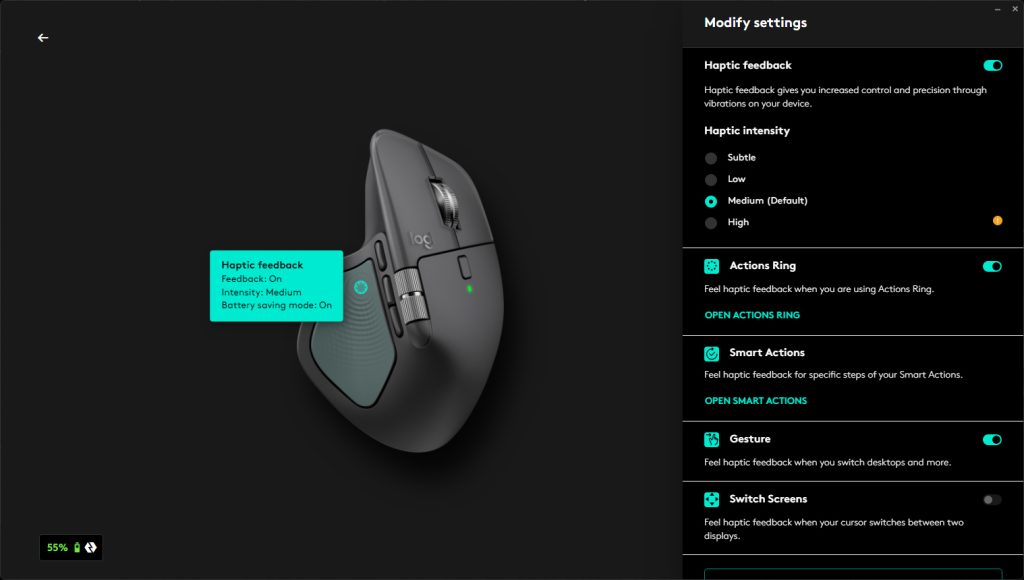
Haptic feedback is also configurable, allowing users to adjust the intensity and choose when the feedback is triggered. This makes it easy to fine-tune the experience based on personal preference without it becoming distracting.
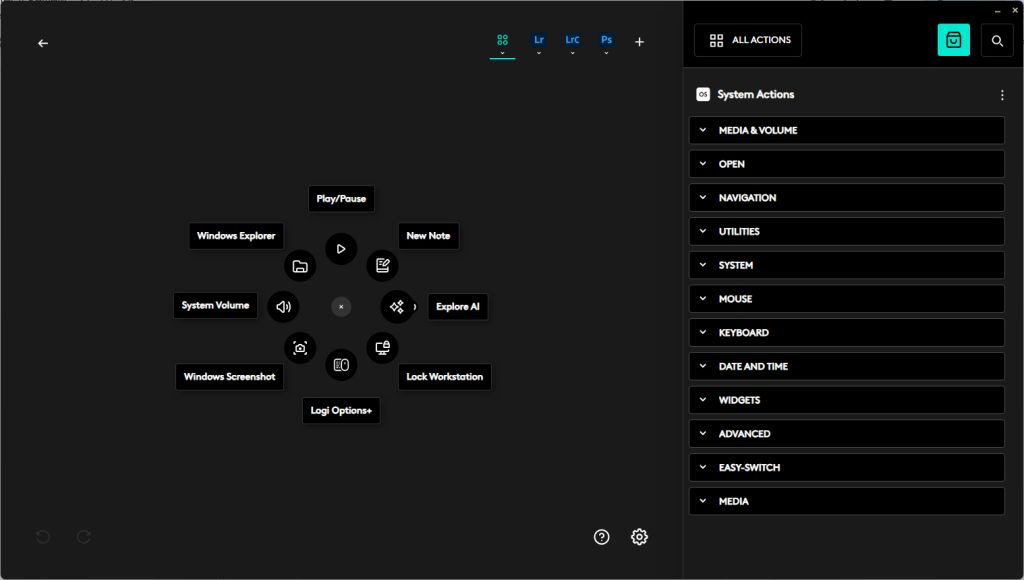
A major new addition to the MX Master 4 is the Action Ring. This is a digital overlay that provides quick access to app-specific shortcuts at any time. By default, it is triggered using the haptic button below the thumb rest and brings up a circular menu with eight configurable shortcuts.
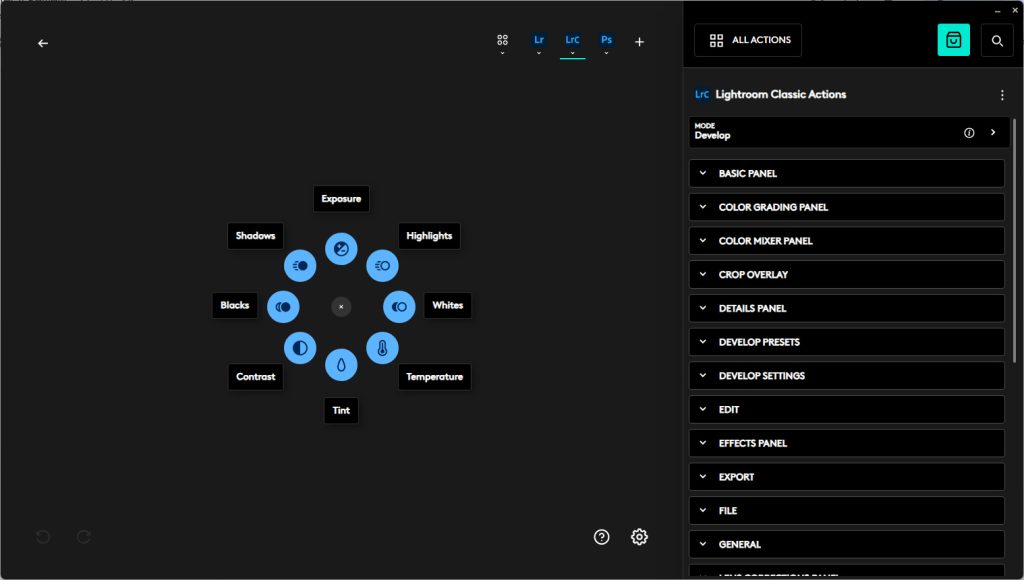
These shortcuts can be contextual, changing based on the active application, whether that’s Chrome, OBS, or Adobe Photoshop. Each shortcut can also expand into an additional layer of actions, significantly increasing the number of commands available.
Logitech claims that the Action Ring can save users up to 33% of their time and reduce repetitive mouse movements by 63%. While I wasn’t able to verify these numbers precisely, I did find the feature genuinely useful once I spent time configuring it to suit my workflow.
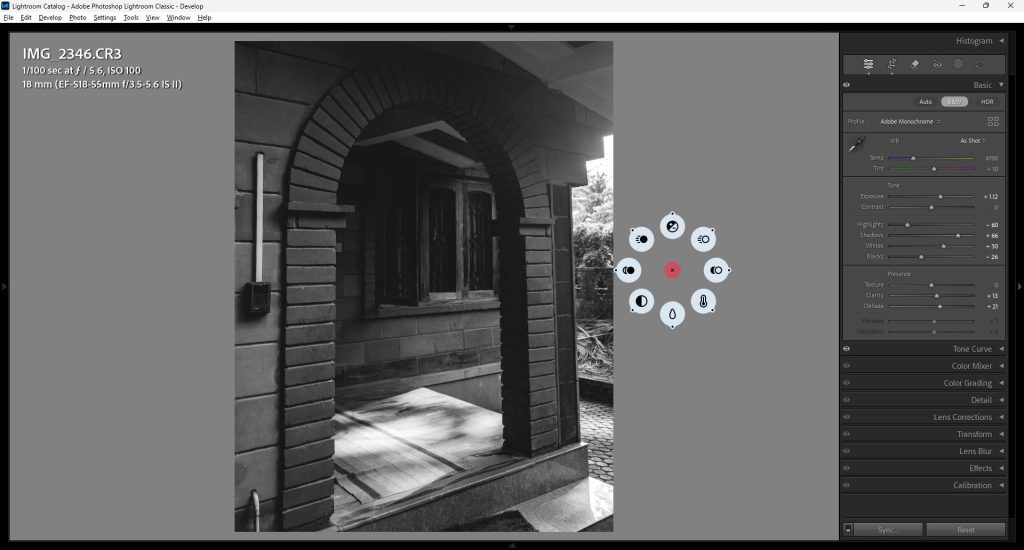
To make setup easier, Logitech has worked with app developers to offer ready-made shortcut templates for popular applications like Photoshop, Lightroom, and OBS. These templates can be installed directly through Logi Options+ and are especially helpful for users who are new to workflow customization. In my case, since I already rely heavily on keyboard shortcuts in Lightroom, I quickly replaced the default shortcuts with ones that better matched my existing habits.
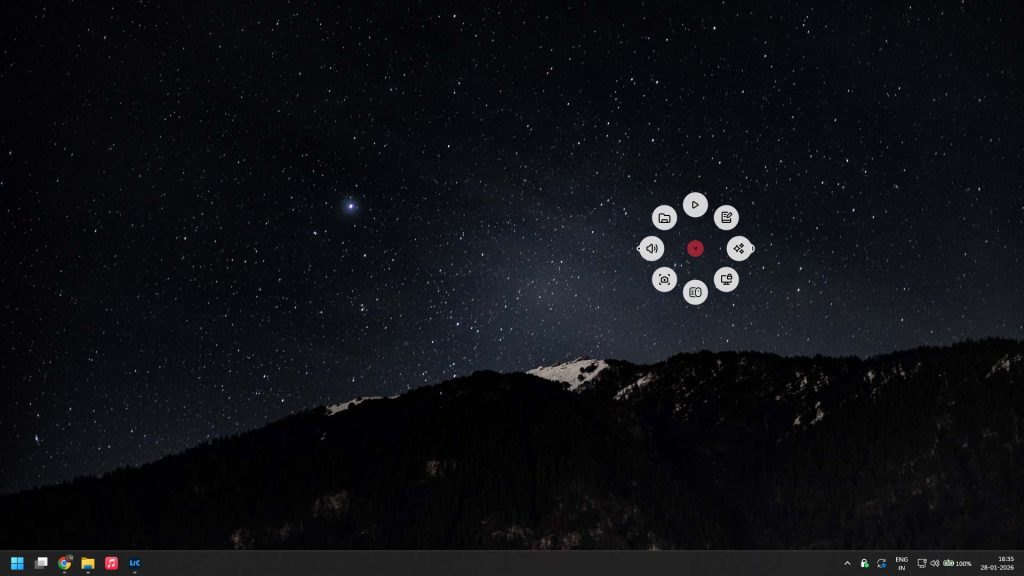
Overall, the depth of customization on offer here is impressive, particularly with the ability to fine-tune controls on a per-app basis. For anyone picking up the MX Master 4, I’d strongly recommend spending time exploring these options and tailoring them to your needs. This is especially true for the Action Ring, which offers more layers of shortcuts than most users will ever need.
Most professionals already have established workflows, and introducing a new input method can initially feel disruptive. However, once you invest the time to integrate the MX Master 4 into your routine and learn to use it intuitively, it can become a genuinely powerful tool for improving productivity.
User Experience and Connectivity
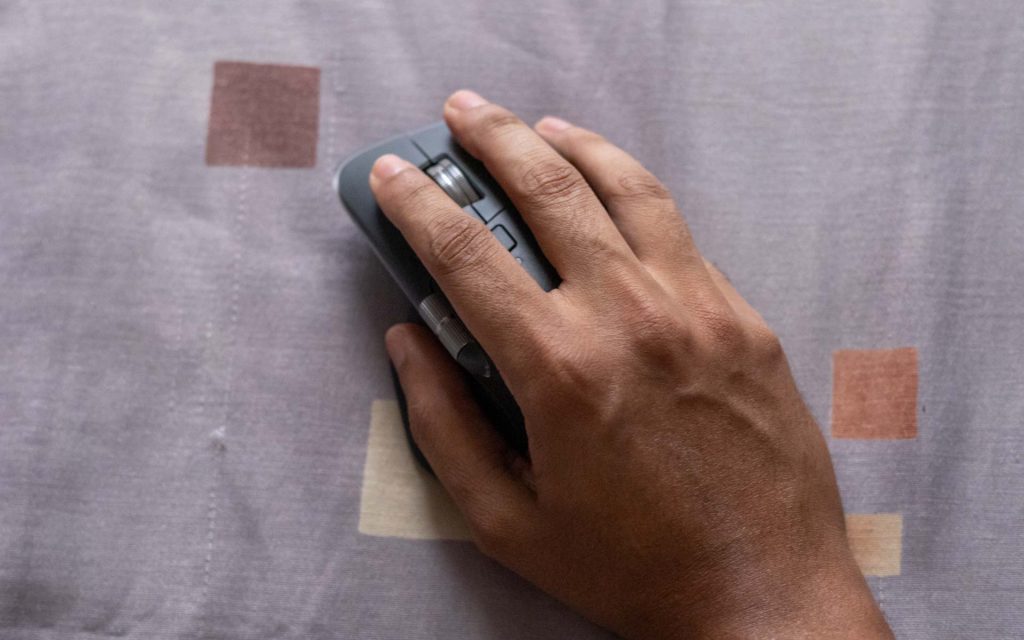
Even though I typically use gaming mice in my day-to-day work, I found the MX Master 4 easy to transition to. The ergonomics are noticeably better for my hand and wrist, and the various buttons are well placed and easy to reach. The Gesture Button and Action Ring overlay add additional layers of customization and personalization, and with some time and practice, I was able to positively update my editing workflow. Initially, I had to consciously remind myself to use the Action Ring instead of relying on traditional mouse movements, but over time it became second nature to access the shortcuts and actions I had set up.
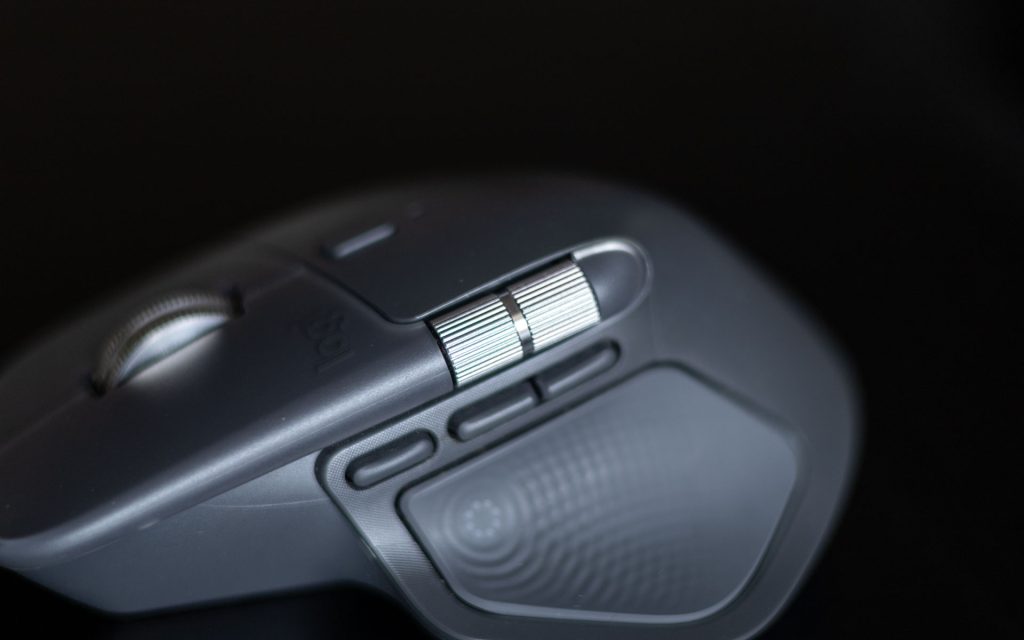
The haptic feedback is a bit of a mixed bag in my experience. On one hand, it adds a sense of tactility that makes certain interactions feel more deliberate. On the other hand, it isn’t a feature that alone justifies upgrading to the MX Master 4. I do appreciate having it, but I wouldn’t miss it too much if it were disabled. That said, this is largely because the mouse feels excellent in almost every other aspect.
The Darkfield sensor does have certain limitations when it comes to polling rate compared to Logitech’s HERO sensor found in its gaming mice. However, for the MX Master 4’s target audience of creative professionals and developers, consistent and accurate tracking across surfaces is far more important. And this is where it truly excels. Whether on glass, wood, or even a tablecloth, the MX Master 4 tracks reliably without issue.
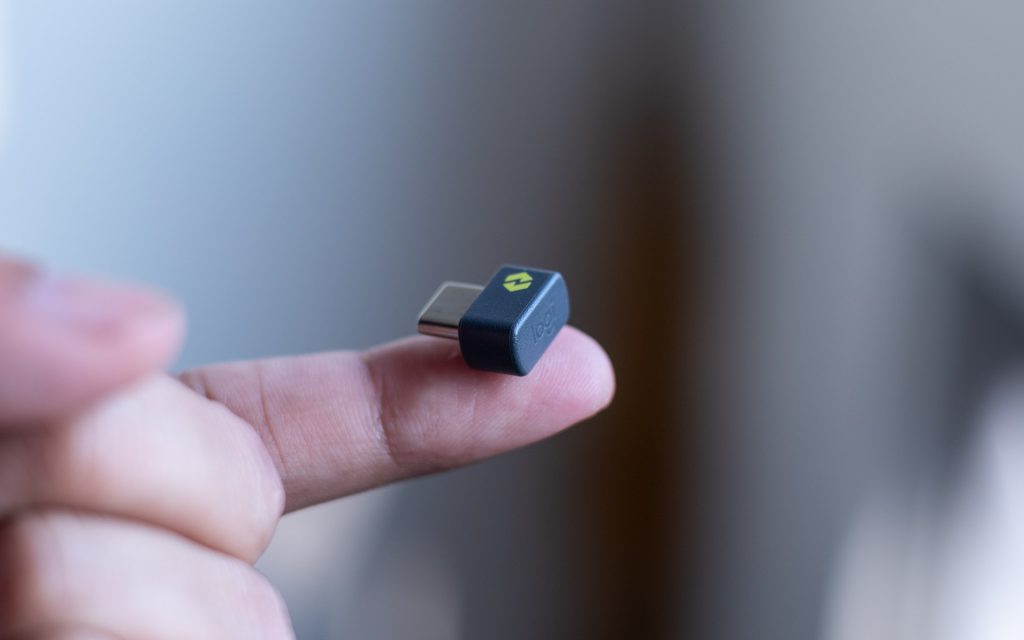
In terms of connectivity, the mouse supports both Bluetooth and a USB receiver. Throughout my testing, the connection remained extremely stable when using the USB receiver. I also tested Bluetooth connectivity on a secondary laptop and experienced no issues there either. One advantage of the USB receiver is the ability to quickly connect the mouse to Android or iOS devices, which is a nice added convenience.
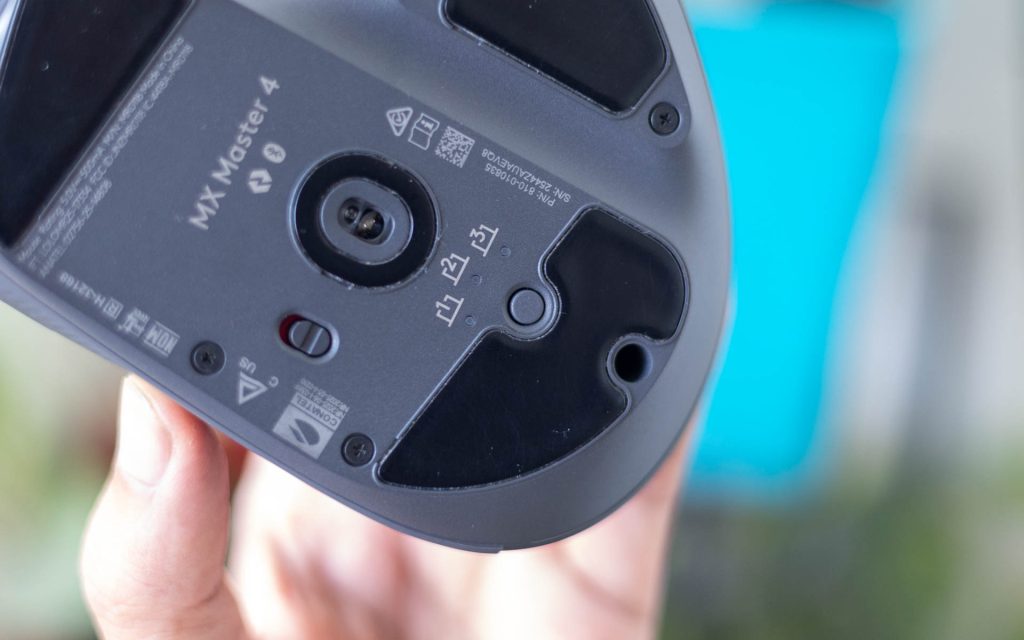
The MX Master 4 can be paired with up to three devices, with switching handled via the device-switch button located on the underside of the mouse. Switching between devices was quick and seamless during my testing. Additionally, Logitech allows users to assign device switching as a custom action to other buttons, making multi-device workflows even more convenient.
Battery Life and Charging
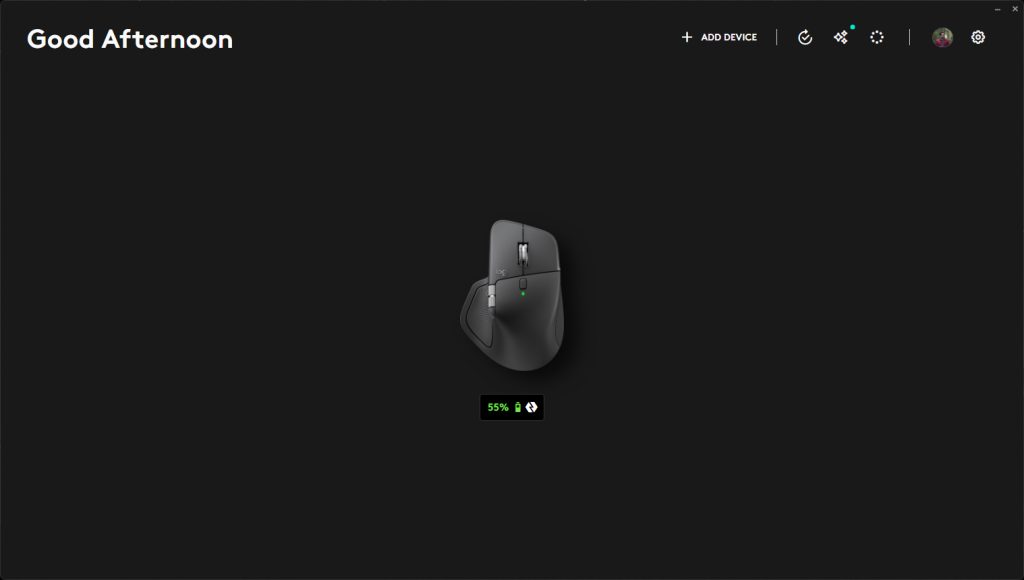
The MX Master 4 continues to offer an excellent rated battery life of up to 70 days, even with the addition of the new haptic feedback motor. After nearly a month of daily use for this review, the battery still had around 55% charge remaining, suggesting that Logitech’s claims are accurate.
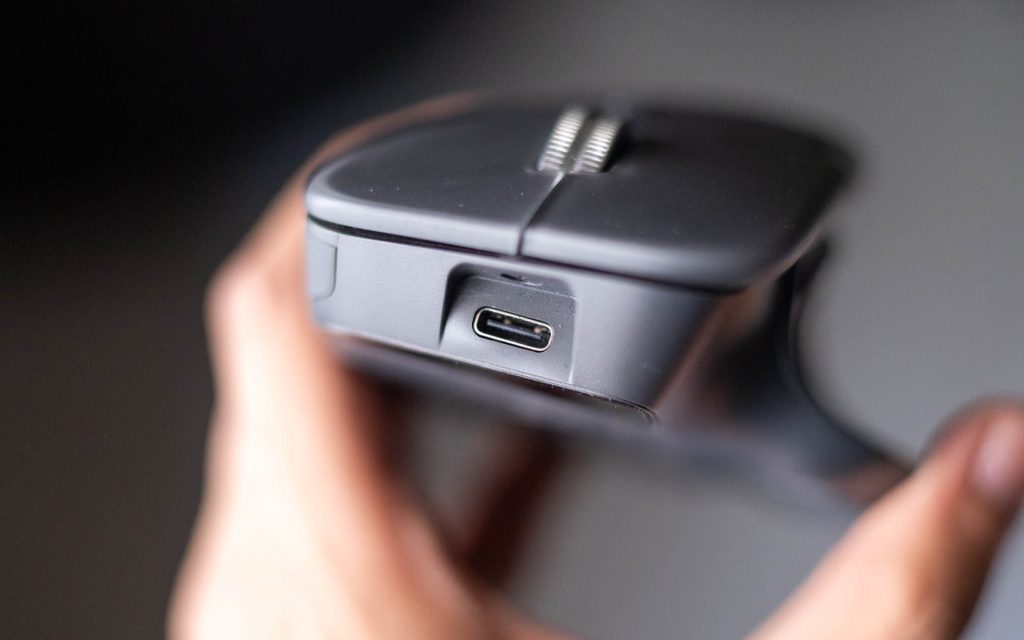
Charging is handled via the front USB-C port and it supports fast charging, delivering up to three hours of use from just a one-minute charge. This comes in handy when the mouse runs out of power and you need to get back to work quickly. The MX Master 4 can also be used while charging, which is always a welcome convenience.
Logitech does not include a charging cable in the box, but this is fairly common across most tech products today and isn’t a major drawback.
Verdict
So, is the MX Master 4 worth the investment? For new users, the answer largely depends on whether you’re willing to spend time setting it up and adapting your workflow. The mouse offers an exceptional level of customization, and features like the new Action Ring can genuinely speed up frequently used tasks once configured properly. It also feels excellent in hand, with ergonomics that support long hours of comfortable use. Add to that reliable tracking on virtually any surface and outstanding battery life, and the MX Master 4 delivers a very well-rounded experience.
Overall, this is a premium productivity mouse that gets all the fundamentals right and then goes further with its deep software-driven features. If you’re looking to take your productivity to the next level and are open to fine-tuning your setup, the MX Master 4 is an excellent tool to have on your desk.
For existing MX Master users, particularly those coming from the MX Master 3 or 3S, the decision is less straightforward. Those mice are still excellent and remain highly capable today. While the new haptic feedback and Action Ring add useful functionality, they aren’t compelling enough on their own to justify an upgrade in my opinion. That said, if you’re still using an older model like the original MX Master from nearly a decade ago, the MX Master 4 represents a meaningful and worthwhile upgrade.
Pricing and Availability
The Logitech MX Master 4 is be available in Graphite and Pale Grey color options at Rs. 15,995. It is also available for Rs. 11,995 on Amazon.in for a limited time. Each purchase also includes a one-month Adobe Creative Cloud membership with access to Photoshop, Lightroom, and Premiere Pro.